

BE5100 WiFi 7 Panel AP with 2.5G Port
Sky Silver
$ 3,029.18
Skip to product information



BE5100 WiFi 7 Panel AP with 2.5G Port
$ 3,029.18
🚚 FREE SHIPPING
🚚 Estimated delivery: 5–30 business days.
BE5100 WiFi 7 Panel AP with 2.5G Port – 5012 Mbps Speed, In-Wall Access Point for Indoors
Imagine walking into any room in your house, apartment, or office and having a powerful, stable, and ultra-fast WiFi signal, with no visible cables or routers taking up space. The BE5100 WiFi 7 Panel AP integrates into the wall like a sleek outlet, but inside it's a powerful WiFi 7 (802.11be) access point designed to give you a smooth browsing experience, instant downloads, and seamless 4K streaming.
It is highly valued by users for its high performance, discreet design, and ease of use. Although its firmware is in Chinese, with the help of your mobile's translation app, you can configure it step-by-step without complications.
⭐ Main features
- WiFi 7 (802.11be) with 4K QAM: state-of-the-art technology that offers a more efficient and faster signal, ideal for modern homes and offices with many connected devices.
- Total speed up to 5012 Mbps: 2.4 GHz band up to 689 Mbps and 5 GHz up to 4323 Mbps, perfect for 4K streaming, video calls, online gaming, and heavy downloads.
- Simultaneous dual-band (2.4G + 5G): connects old and new devices at the same time, without saturating the network.
- Advanced WiFi 7 features (MLO, MRU, Preamble): greater stability, lower latency, and better spectrum utilization for a smoother experience even in demanding environments.
- Standard 86-type in-wall design: installs in a standard (86-type) wall box, remaining flat, discreet, and elegant, like a modern outlet.
- 802.3at PoE power: receives power through the network cable, so you do not need an additional power adapter or extra cables.
- Intelligent spectrum navigation: guides dual-band devices to prioritize connecting to 5 GHz, balancing the load between 2.4 GHz and 5 GHz to keep the network fast and stable.
- FIT mode with automatic RF adjustment and intelligent roaming: ideal for projects with multiple APs; devices move from room to room with smooth roaming and no noticeable cuts.
- Weak signal device management: can expel or block devices with very low signal to prevent them from slowing down the entire network.
- TP-LINK display function: with just one press of a button, it facilitates wireless access to compatible brand devices, ideal for demonstrations or exhibition environments.
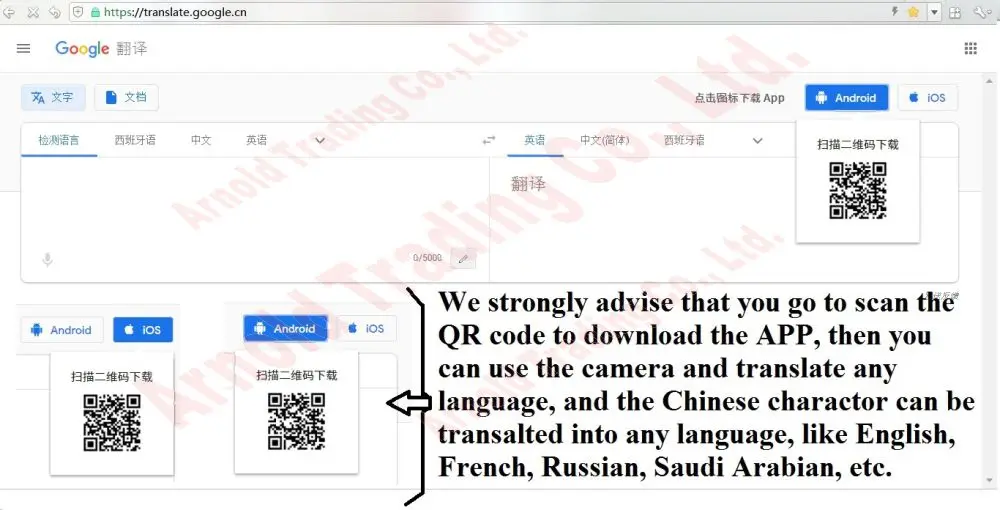
- Chinese firmware, guided use with translation: the interface is in Chinese, but you can use your smartphone's camera and a translation app (like Google Translate) to translate each screen in real-time and complete the setup.
💡 What benefits does it bring to your daily life?
- Powerful WiFi in every room: install a panel in each key room (living room, office, bedroom) and forget about dead zones or weak signals.
- Clean and tidy spaces: since it is wall-mounted, you won't have routers on furniture or cables hanging; just a smooth and modern surface.
- Seamless multimedia experience: 4K streaming, HD video calls, and online gaming with low latency, even with multiple users connected at the same time.
- Ideal for projects and renovations: perfect for hotels, tourist apartments, offices, new construction homes, or comprehensive renovations looking for a professional and aesthetic network.
- Configuration possible for any user: even if the firmware is Chinese, with the translation app you can follow the menus step-by-step. Just point your camera, read in your language, and configure.
📱 How to configure Chinese firmware without complications
To make configuration simple, we recommend:
- Install a camera translation app on your smartphone (e.g., Google Translate).
- Scan the QR code in the manual or on the web interface to access the management app.
- Point the camera at the Chinese configuration screen; the app will translate the texts into your language (Spanish, English, French, Russian, Arabic, etc.).
- Follow the translated steps to change network name (SSID), password, operating mode, and other settings.
You may also be interested in...